Guides / Recurring transactions
How to Set Up Recurring Transactions
Salary, rent, and subscriptions don't need typing in by hand every month. Set them once and let the predictable half of your budget record itself.
A surprising share of your money moves on a timetable. Salary lands on the same day each month. Rent leaves a few days later. Phone, internet, and the four streaming services you’ve somehow accumulated all arrive on their own schedule without asking you anything.
Typing those in by hand every month is pure tedium, and tedium is what kills the habit. Recurring transactions exist so the predictable part records itself and you’re left logging only the spending that involved an actual decision.
Setting one up
There’s no separate flow to learn. You do it from the normal add screen.
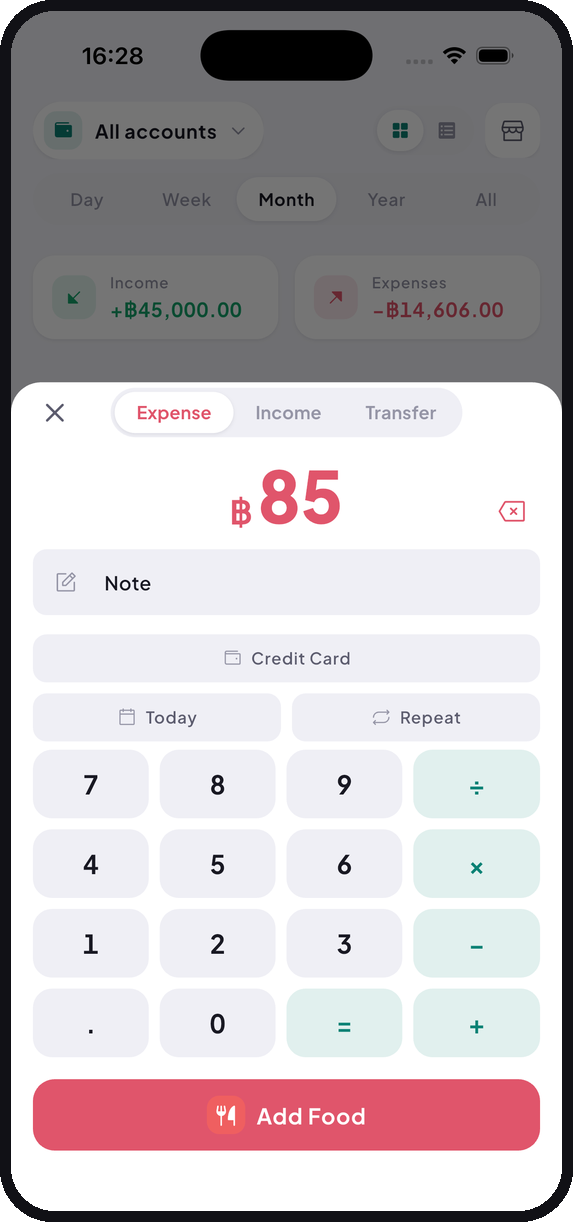
Enter the amount, pick the category and account as usual, tap Repeat, choose how often, and save. From then on the entry appears on schedule. The template remembers everything the transaction needs, including which account it comes from, so your balances stay right without you touching anything.
What to set up first
Work down by size, because that’s where the value is:
Salary and any regular income first, since it’s the baseline everything else gets measured against. Then rent or mortgage, usually the single biggest line in the whole budget. Then utilities, your phone plan, and finally the subscriptions.
Ten minutes of setup covers most of a year’s fixed spending.
The part nobody expects
Entering every subscription in one sitting has a side effect that’s often worth more than the automation itself. You see the whole list at once, with amounts attached.
Almost everyone finds at least one they’d forgotten they were paying for. Small recurring charges are specifically designed not to be noticed month to month, which works beautifully until you see one written down as an annual figure. A 199 baht subscription is nothing. The same subscription at 2,388 baht a year tends to prompt a decision fairly quickly.
When the amount changes
Utilities move around, so you have two sensible options.
You can set the typical amount and correct it. The entry appears on schedule, and when the real bill arrives you edit that month to the actual figure. Your total stays accurate, and more importantly you never forget the bill exists.
Or you can leave the genuinely unpredictable ones manual. If an amount swings wildly, automating it just converts “typing it in” into “correcting it,” which isn’t a win. Log those by hand when they arrive.
Anything with a fixed amount, so rent, subscriptions, a phone plan on a set tariff, needs no correction at all. Set it and forget it, properly.
Give the list a look occasionally
Templates keep running until you change them. That’s the point, but it also means a service you cancelled six months ago can still be generating entries.
Every few months, skim the list. Cancelled something? Stop its template. Rent went up? Update the amount. Changed which account pays a bill? Fix the template rather than editing each generated transaction one by one.
What it adds up to
Once the fixed items run themselves, the only thing left to log by hand is the discretionary stuff: food, transport, shopping, the things that vary because you chose something.
That’s a much smaller daily task. It’s also, conveniently, the only spending you can actually do anything about. Your monthly summary still shows everything, fixed and variable together. You just stopped typing the half that never changes.
Tally is free on iOS and Android. No account, no monthly fee.